Send a File to Your Server from ChatGPT or Claude
Your assistant can't carry files on its own yet. SentinelX gives it secure, one-time links, so ChatGPT or Claude can send a file to your server or bring one back.
You have a config file in the chat and want it on your server. Or there’s a log on the server you’d like to download. You ask your assistant to handle it, and it tries: it turns the file into a wall of encoded text, gets halfway, and gives up. Anyone who uses AI with their servers has run into this.
Why it happens
It isn’t your assistant’s fault. The protocol that connects Claude and ChatGPT to outside tools, MCP, can’t carry files yet. A standard for it is being written, but it isn’t here. Until then, the only way a file can travel is through the conversation itself, encoded as text, and that breaks down past a few kilobytes.
A link, not the file
SentinelX takes a different route. Your assistant doesn’t carry the file: it gets you a link. The bytes travel straight between your browser and your server, never through the chat. A large file moves as easily as a small one.
Three ways to use it
Bring a file back from your server. Ask for it:
“Give me a download link for the nginx error log on the web server.”
You get a link, click it, and the file downloads.
Send a file to your server. Tell your assistant where it should go:
“I want to upload a file to /srv/app/config.yaml.”
It gives you a link to a page like this one, where you pick the file and upload it. The page shows exactly where the file will land before you send it.
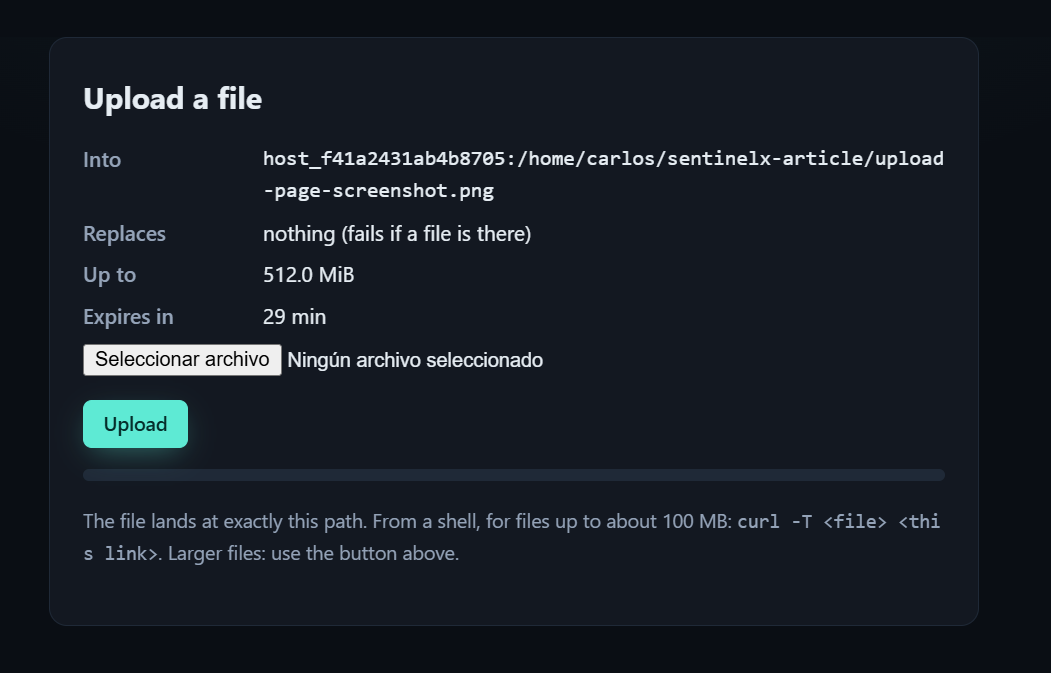
Attach it in the chat. In ChatGPT you can simply attach the file to your message and ask for it to be saved on the server; it lands there directly. In Claude, if code execution is enabled, Claude can upload the file itself using the link. Otherwise it hands you the link and you drop the file on the page.
Safe by design
Moving files onto a real server is exactly where you want guardrails.
Links are single-use and short-lived. Each one serves one file and expires within minutes.
The destination is fixed in advance. An upload link is tied to one exact path when it’s created. Whoever opens it can’t send the file anywhere else.
Only where your server allows. Uploads can only go to folders the host’s own policy marks as writable. Anything else is refused before a link is ever issued.
Every file is verified. Its checksum is compared on arrival, so you know it landed intact.
Downloads never run. Files are always delivered as downloads, so an HTML page or script you bring back can’t execute in your browser.
One thing worth knowing
A folder has to be allowed in SentinelX’s policy and also writable by the operating-system user the agent runs as. If you allow /home/you in the policy but the agent’s user can’t write there, the upload is refused with a clear message. Pointing uploads at a folder that user owns avoids the surprise.
Limits
Up to 512 MB per file. From a shell, curl handles files up to about 100 MB; for anything larger, use the upload page in your browser.
Try it
Install the agent on your server, then add SentinelX to your assistant. In ChatGPT, it’s in the apps directory: SentinelX for ChatGPT.
Ask for a download link to a file you know is there. The first time it arrives in your browser without passing through the chat, the difference is obvious.
Details and plans at sentinelx.app.